Creating an Apply button that collects parameter and relevant filter selections to execute a single query is a common user request for Tableau dashboards.
However, we run into asynchronous problems when navigating between dashboards in the same workbook that also require filter selections.
The most common workaround is to create a separate global filter dashboard. Users must:
This process must be repeated whenever users want to change their selections. It's not a great user experience.
We need a way to bind filter selections together across every dashboard in the workbook.
Behold the power of the Universal Apply Button!
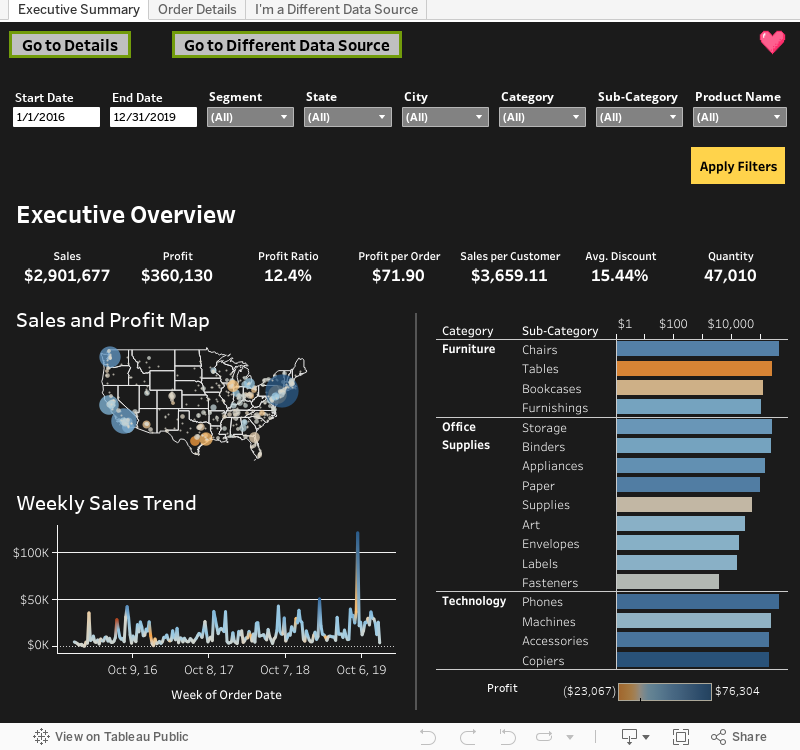
Features:
What's the secret? Filters are driven by Set Actions, not Action Filters.
Hmmm... Ready are you?
Click here to download the sample workbook or from below:
This step is featured on Tableau's Knowledge Base here, but do NOT apply Action Filters.
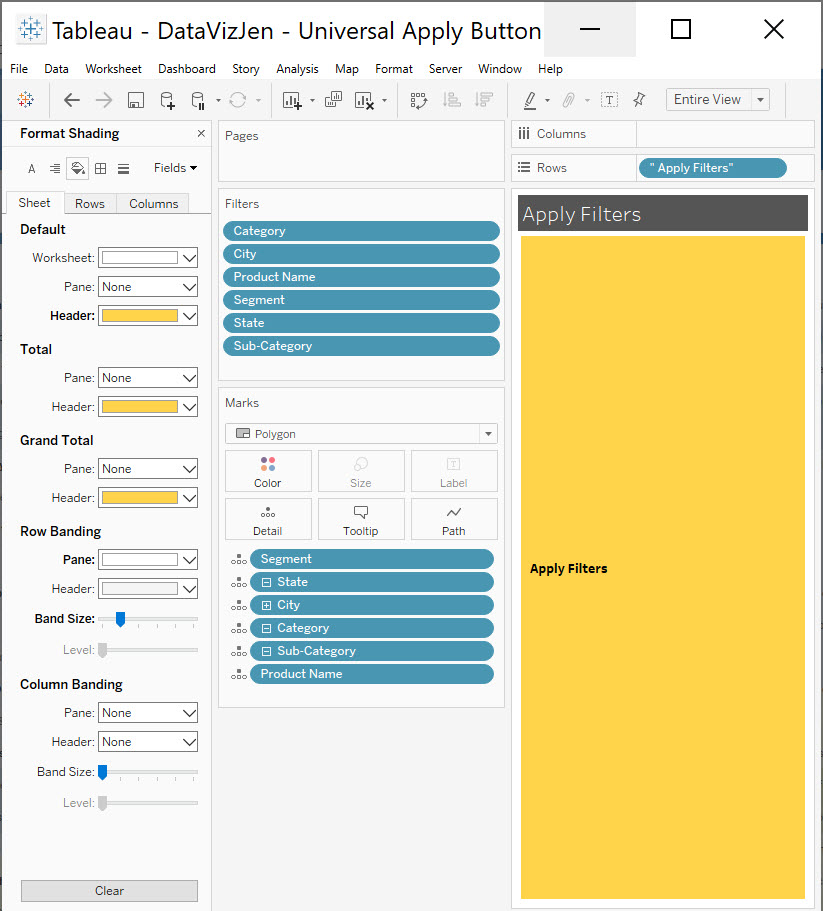
To make your "Apply Filters" worksheet, simply:
Your worksheet should look something like this:
To create these Sets:
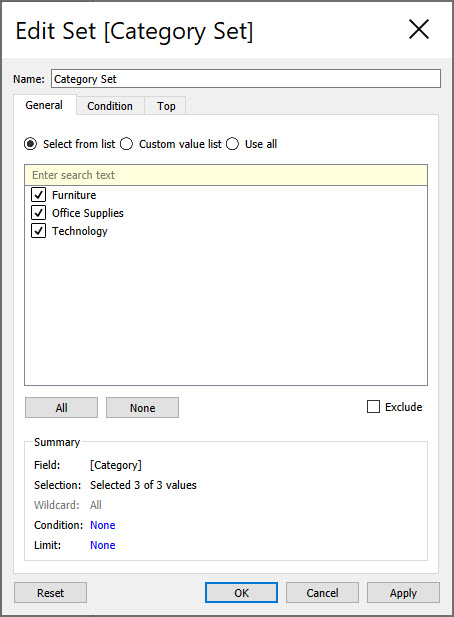
All you need to do for this step is:
Do not include the "Apply Filters" worksheet.
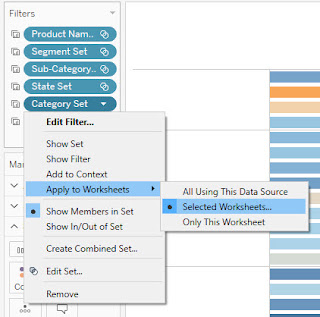
To create the Set Actions:
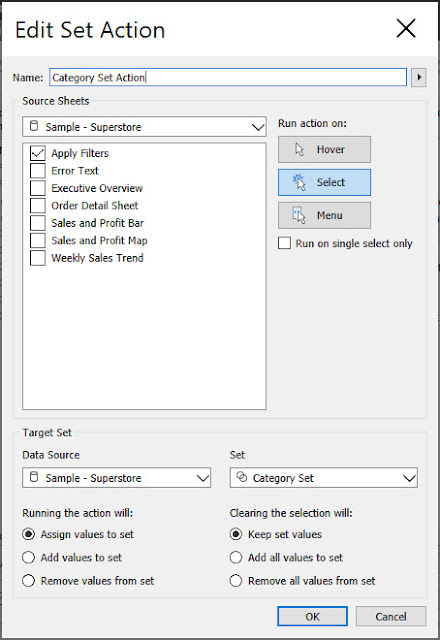
Do this for every set you created for the filters. That's it! You're done.
Let's set you up with some Parameter Actions.
To create a parameter action for your date, you can read about it on the Flerlage Twins blog (awesome blog posts, btw) here.
Steps:
1. Create a calculation of the date parameter and name it "Start Date Chosen". This calculation will be a bridge that allows us to perform a parameter action.
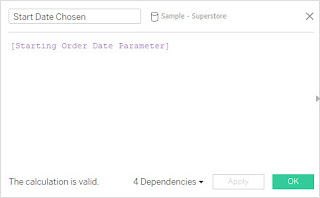
2. Duplicate your date parameter and name it "Start Date Applied".
3. Use "Start Date Applied" in your calculations.
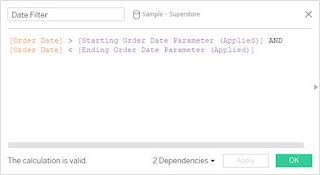
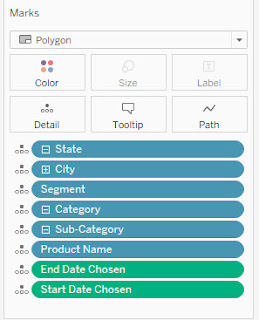
4. Go to the "Apply Filters" worksheet.
5. Put the dates on Detail and choose Exact Date (if applicable).
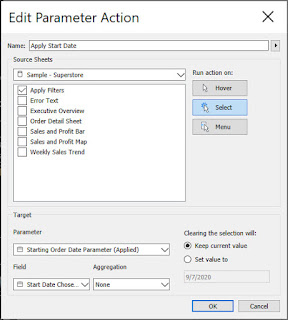
6. Go to Dashboard > Action > Add Action > Change Parameter. Choose the data source and your "Apply Filters" worksheet.
7. For Target, choose the parameter tagged "Applied" and the appropriate "Date Chosen" field.
Now let's get fancy with an "Invalid Date" warning!
To create an "Invalid Date" warning, we are going to:
1. Create another worksheet named "Error Text" and create a string that says "Invalid Dates" on the Label Marks. You can also add a tooltip that directs the user on why they received the error like, "Check the Date Selections".
2. Now, add some Boolean logic to the filter of this worksheet and the "Apply Filters" worksheet. Do not use the duplicated parameters for this date logic.
[Ending Order Date Parameter] < [Starting Order Date Parameter]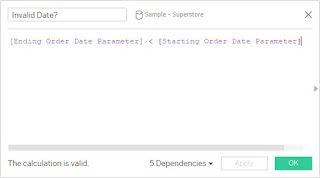
3. Next, put the [Invalid Date?] field on the Filters box of the "Error Text" and set the value to True.
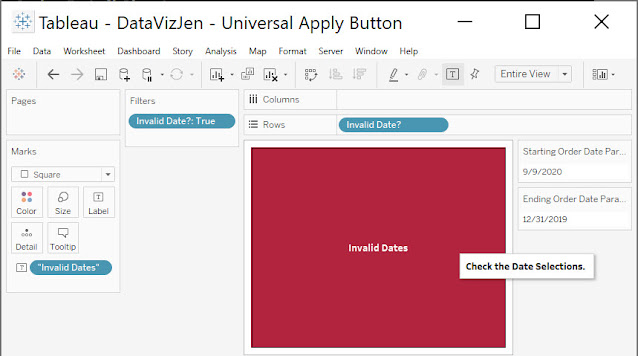
4. Now, go to the "Apply Filters" worksheet and put the [Invalid Date?] field on the Filters shelf. Set the value to False.
5. Create a vertical layout container and place it on the dashboard. (I like to float mine.)
6. Place both the "Error Text" and "Apply Filters" worksheets in the layout container. Now, if an invalid date selection is chosen, the "Apply Filters" button is disabled and this error will pop up to help guide the user.
Got multiple data sources? No problem!
All you need to do is blend your secondary data source to your primary data source using the dimensions you want to filter on.
For this multiple data source example, we are using the Sales Target (US) data source along with our Superstore data source.
1. Go to the "Apply Filters" sheet.
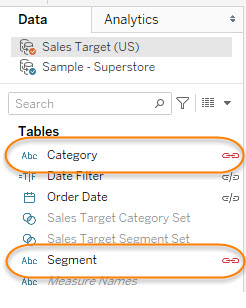
2. Drag in the common fields of the data sources you plan to filter on to Details. (ex: Category and Segment.)
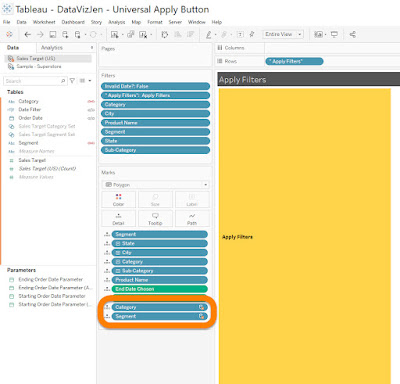
3. Be sure to link them.
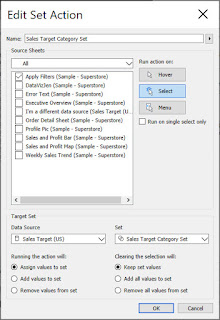
4. Now, we repeat Steps 2 - 4 by creating sets for the fields in the secondary data source, putting them on filters, and only applying them to the worksheets that use the secondary data source as the primary data source.
However, for these Set Actions, we will scroll up to the "All" option for Source Sheets and then only select our "Apply Filters" worksheet. The Target Set data source will be the secondary data source.
And there you have it. You have mastered the Universal Apply Button.

Happy vizzing! 💗



Have a question or just want to say hi?
I'd love to hear from you.